How To Better View The Color Highlighted Worksheets

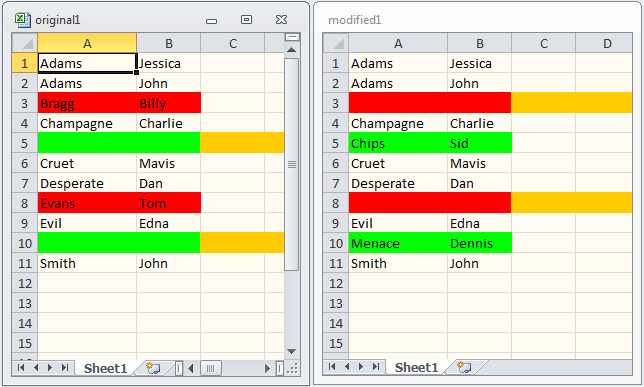
DiffEngineX creates two color highlighted workbooks after each comparison (in addition to a difference report typically called Sheet1). Red and green are used to highlight deletions and additions. Built-in Excel functionality can make viewing the color highlighted worksheets much easier. After you have got the hang of things you may want to do a second comparison with Hide Matching Rows turned on. Hide Matching Rows is found on the DiffEngineX Extras dialog box.
After DiffEngineX has produced its results, please follow the instruction given below.
The two color highlighted workbooks have the same names as the spreadsheets you selected for comparison, except for a number at their ends.
(Note: If you are comparing rows of data, rather than formula based sheets, remember to make sure your data is pre-sorted via Excel and that Align Rows is turned on. Align Columns, in most cases, can be left off.)
Excel 2007/Excel 2010/Excel 2013
- Select the View tab
- Use the drop down list of workbooks from the Switch Windows button to bring to the front one of the two color highlighted sheets
- Select View Side by Side
- Select the other color highlighted workbook
- As you scroll up and down the two color highlighted sheets move in sync
- You can now easily spot what has been deleted and added
Alternatively to get a nice arrangement of windows:
- Select the View tab
- Use the drop down list of workbooks from the Switch Windows button to bring to the front the difference report, which is typically titled Sheet1
- Click the Arrange All button
- Ensure Tiled is selected and hit OK
Excel 2003
- Select one of the two color highlighted workbooks from the Window menu
- Select Compare Side by Side with... from the Window menu
- Select the other color highlighted workbook
- As you scroll up and down the two color highlighted sheets move in sync
- You can now easily spot what has been deleted and added
Alternatively to get a nice arrangement of windows:
- Select the difference report, titled Sheet1, from the Window menu
- Select Arrange... from the Window menu
- Ensure Tiled is selected and hit OK
 Short DiffEngineX Guide
 Viewing The Results
Compare Text
New! If you write any kind of document from contracts to articles and you want to see the changes, get our other product TextDiff.
Report Screenshot